How to restore old photos with AI
By Chatday Editorial Team ·
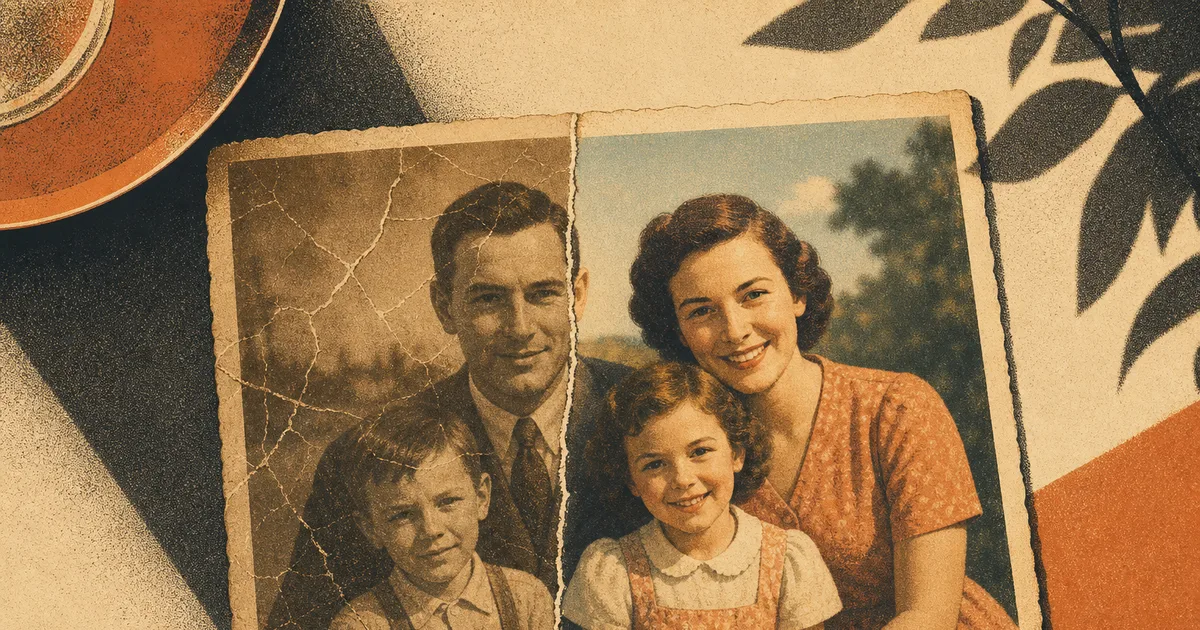
Somewhere in your house there’s a shoebox or a phone folder full of photos slowly falling apart: a creased wedding portrait, a sun-faded snapshot of grandparents, a blurry black-and-white picture of someone you never got to meet. Until recently, fixing them meant a pricey trip to a specialist. Now your phone can do a startling amount of it in about a minute. The catch: there’s a right way to do it, and a way that quietly rewrites your family history. Here’s how to get the magic without the mistakes.
What AI can actually fix
Modern photo tools are trained on millions of images, so they’ve effectively “seen” what a torn corner, a faded sky or a sharp portrait is supposed to look like. Point one at an old photo and it can scrub out scratches and creases, undo decades of yellow-brown fading, nudge a soft image back into focus, and paint convincing color onto a black-and-white shot. The same kind of model that can turn a plain selfie into a polished headshot is just as happy repairing your grandmother’s portrait.
The tool doing a lot of this heavy lifting today is the image model Google nicknamed Nano Banana, and its newer, sharper Pro version. What makes them good for old photos isn’t just raw quality: it’s that you can ask in plain language (“remove the scratches, keep his face the same”) and it understands. If you’re not even sure what’s in a badly faded print, you can ask AI to describe what it sees first, then decide what to fix.
Here’s the honest map of where it shines and where it’s only guessing:
| Photo problem | What to ask AI for | Reality check |
|---|---|---|
| Scratches, creases, tears, dust | Remove the scratches and damage | ✅ Excellent: this is the sweet spot |
| Faded or yellowed colors | Restore natural color and contrast | ✅ Great |
| A black-and-white photo | Colorize this naturally | 🤔 Convincing, but the colors are educated guesses |
| Mild blur or soft focus | Sharpen and bring back detail | 🤔 Good on light blur, less so on a smear |
| A tiny, very blurry face | Sharpen the face | ⚠️ Risky: it may reinvent the features |
| A torn-off or missing section | Reconstruct the missing area | ⚠️ Pure invention: enjoy it as art, not record |
The honest catch: AI guesses, it doesn’t remember
This is the part most “restore your photos!” ads skip, and it’s the most important thing to understand. When a detail is too damaged to read, AI does not magically recover what was there: it invents the most likely-looking replacement based on everything it has seen before. On a wall or a sky, nobody minds. On a face, it matters a lot.
Photographers who tested these tools on real family portraits have watched them slide into the uncanny: makeup that was never worn, a different jawline, softened or rearranged eyes, a smile that isn’t quite right. When the photography site PetaPixel ran old family photos through one popular restorer in early 2026, the results were memorably described as turning loved ones into near-strangers, and the tool’s own product lead admitted that tiny or blurry faces “have little data to start with, so creating a faithful representation is difficult.” In other words, the AI is redrawing, not remembering.
The good news: the newest models are better behaved than the old ones. Earlier restorers tended to “hallucinate” aggressively whenever they were unsure, while the latest image models are noticeably more cautious and more controllable, especially when you tell them, in the prompt, to leave faces alone.
How to restore a photo, step by step
- Make the best copy you can. Don’t photograph a photo at an angle in dim light. Lay the original flat, use soft even lighting (a window works), fill the frame, and avoid glare. The more real detail you give the AI, the less it has to invent.
- Upload it as the reference in an image tool.
- Ask for specific fixes, and protect the faces. Vague prompts (“make it nice”) let the AI take liberties. Name the exact repairs and explicitly tell it to keep faces unchanged (steal the prompts below).
- Generate a few options. Don’t accept the first result; make two or three and compare.
- Pick the most natural one, not the most polished. If it looks like a glossy modern photo of a stranger, it’s gone too far. The goal is your photo, repaired, not a reinvention.
Prompts that actually work
Paste one of these, attach your photo, and tweak the wording for your picture.
Getting the best results
- Fix one thing at a time if a photo is badly damaged. Repair the damage first, then run a second pass to colorize; it’s easier to spot when the AI goes off the rails.
- Keep your expectations honest. A faded photo with a clear face will look incredible. A thumbnail-sized, deeply blurry face will be a guess no matter how good the tool is.
- Save the original. Always work on a copy. Your real photo is the irreplaceable thing; the AI version is a bonus, not a replacement.
- Print the keepers. Half the joy is putting a freshly revived photo back on the wall.
Bring your shoebox back to life
AI photo restoration is genuinely one of those “wow, the future is here” moments: a faded memory can look vivid again in the time it takes to make tea. Just remember what’s really happening under the hood: the AI is a brilliant retoucher with a vivid imagination, not a witness to your past. Guide it, protect the faces, compare with the original, and you’ll get the best of both: repaired photos that still tell the truth.