How to Make Invitations With AI
By Chatday Editorial Team ·
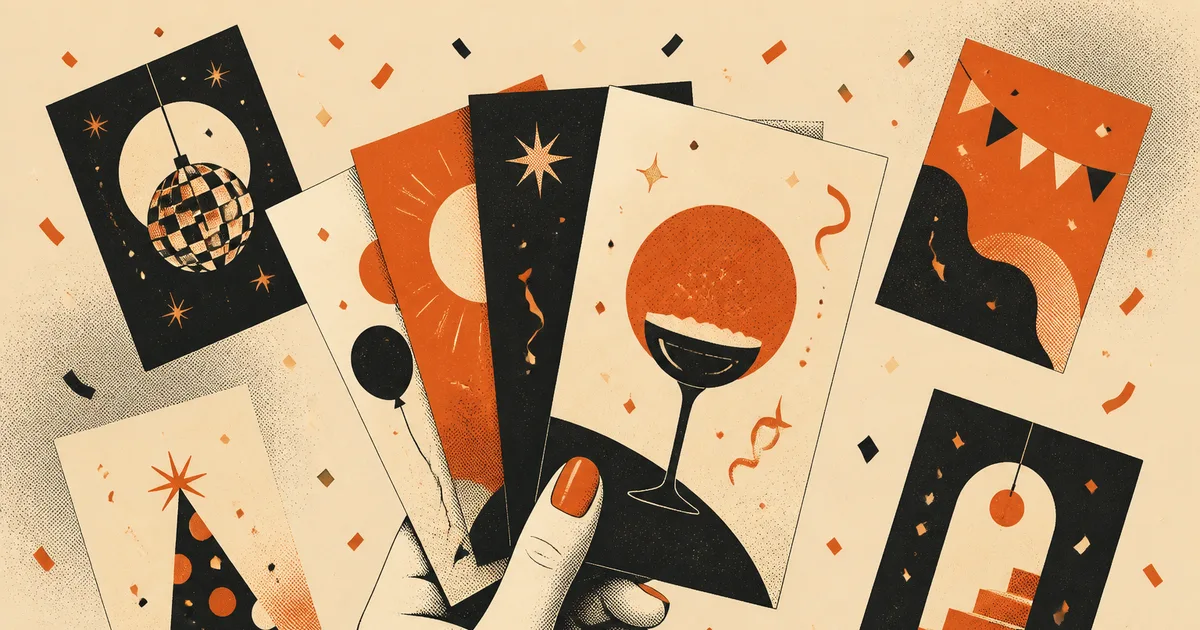
You are throwing a party. The date is set, the guest list is in your head, and now you need an invitation that does not look like every free template on the internet. A few years ago that meant either paying a designer or fighting with clip art at midnight. Now you can describe the invite you want in a sentence or two and an AI draws it for you, text and all.
That last part used to be the catch. Older image AI could paint a gorgeous scene but the moment you asked for words on it, you got gibberish that looked like a foreign alphabet. That has changed fast. In early 2026, a handful of image models can finally put readable, correctly spelled text inside a picture, something that was close to unusable about 18 months earlier. For invitations, where the whole point is the date and the details, that shift is what makes this actually worth doing.
This guide walks through it start to finish. What kind of invitation to ask for, how to write the prompt so the text comes out right, how to handle a design that is almost perfect, and the honest limits worth knowing before you send it to 40 people.
What “making an invitation with AI” really means
There are two ways to end up with an AI invitation, and they are not the same job.
The first is generating the whole thing from a text description: you tell the AI “a birthday invitation that says X” and it draws the background, the layout and the words together in one image. Quick, and increasingly good.
The second is taking a photo or a design you already have and editing it, which is image-to-image. Handy if you want your kid’s actual face on the card, or you already have a rough layout and just want it polished. If restyling a real photo is more your goal, we cover that in detail in our guide to turning any photo into art with AI.
Most people want the first one: type a description, get a finished invite. So that is what we will focus on, with a note on edits later.
Start by deciding four things
A vague prompt gives a vague card. Before you type anything, get clear on four choices. They map directly onto the sentence you will write.
- The occasion and mood. A first birthday, a 40th, a wedding, a baby shower and a Halloween party all want a completely different feeling. Say which, and say the vibe: playful, elegant, spooky, cozy.
- The visual style. This is the look. Watercolor florals, bold retro poster, minimalist type on cream, hand-drawn doodles, gold-on-navy formal. Name a style and you skip the generic default.
- The exact wording. Write out the text you want on the card, word for word. Name, date, time, place, and a short line like “Join us to celebrate.”
- The shape. A tall portrait card, a square for Instagram, or a wide banner behave differently. Pick one so the layout fits where you are sending it.
Nail those four and the prompt writes itself.
How to write the prompt (the text trick)
Here is the single most useful habit: put the words you want printed inside quotation marks. When you write the wording in quotes, the AI treats it as literal text to render on the image, not as a mood to interpret. It is the difference between a card that actually says “Maya turns 5” and one that invents a squiggle that sort of looks like letters.
Keep the text short. One name, one date, one line of detail. The more words you cram in, the more likely the AI trips on a letter. If you have a lot of information (address, RSVP number, dress code), it is often cleaner to leave that off the image and type it in your message when you send the invite.
Match the style to the occasion
Different events have a sweet spot. You can break these rules on purpose, but they are a reliable starting point.
| Occasion | Style that tends to work | Format |
|---|---|---|
| Kids’ birthday | Hand-drawn cartoon, bright colors, balloons | Portrait card |
| Milestone birthday (30, 40, 50) | Bold retro poster or gold-on-dark | Portrait or square |
| Wedding / engagement | Watercolor botanicals, thin serif type | Portrait card |
| Baby shower | Soft pastels, gentle illustrations | Portrait or square |
| Dinner / cocktail party | Moody, elegant, minimal type | Square for socials |
| Halloween / themed | High-contrast, playful spooky art | Square or wide banner |
If you are sending it mainly through a phone (WhatsApp, Instagram, a group chat), a square or portrait image looks best. A wide banner is better for an email header or an event page cover.
When the design is close but not perfect
You will rarely get the perfect card on the first try, and that is normal. The move is not to rewrite everything. Generate three or four versions, pick the one whose layout and vibe you like most, then ask for one change at a time.
Useful follow-up requests:
- “Same design, but fix the text to read exactly ‘Maya turns 5!’”
- “Keep everything, make the headline bigger and move the date lower.”
- “Same card, warmer colors, less busy background.”
Small, specific edits beat starting from scratch, because you keep the parts that already work. This is the same iterative habit that makes AI good at other design jobs, like when you design a logo with AI or make clean product photos: get a strong base, then nudge it.
Where AI invitations still fall short
Being honest here saves you an embarrassing send. A few things to watch:
- Long or unusual text can still garble. Names with unusual spelling, accents, or long addresses are where errors creep in. Always read every word on the final image out loud before you send it.
- It is not a full design editor. You cannot click and drag to nudge one letter a pixel over. You steer it with words, which is fast but less precise than a tool like Canva for final tweaks.
- Fonts are chosen for you. You can ask for “bold condensed” or “elegant serif,” but you cannot load a specific brand font. For a casual party that is fine; for strict brand work it may not be.
- Style can drift on edits. Sometimes an edit changes more than you asked. If that happens, go back to the version you liked and try a smaller instruction.
None of these are dealbreakers for a party invite. They are just the reason to proofread and, for anything formal, do a final polish in a design app.
Which AI to use for the words
Not every image model is equally good at text, and for invitations text is the whole game. Some models were built with readable typography as a priority and handle short headlines and dates cleanly; others are stronger on artistic scenes but weaker on letters. If your first tool keeps mangling the wording, switching models is often the quickest fix.
The simplest approach is to use a place where you can try more than one image model without signing up for each separately, so you can compare which one nails your text and style. If you want a broader look at the current field first, our rundown of the best AI image generators breaks down who is good at what.
Your invitation, in the next five minutes
The whole process is shorter than deciding on a cake. Choose the occasion and mood, name a style, write your wording in quotes, pick a shape, and generate. Look at a few versions, tidy up the best one with small edits, and read every word before you send it.
The reason this works now is that AI finally got good at the boring but essential part, putting the right letters in the right place. So you get a design that feels made for your party, not pulled from a template everyone has seen.